

Overview
This guide will show you how to set up Prisma with Trigger.dev, test and view an example task run.Prerequisites
- An existing Node.js project with a
package.jsonfile - Ensure TypeScript is installed
- A PostgreSQL database server running locally, or accessible via a connection string
- Prisma ORM installed and initialized in your project
- A
DATABASE_URLenvironment variable set in your.envfile, pointing to your PostgreSQL database (e.g.postgresql://user:password@localhost:5432/dbname)
Initial setup (optional)
Follow these steps if you don’t already have Trigger.dev set up in your project.Run the CLI `init` command
The easiest way to get started is to use the CLI. It will add Trigger.dev to your existing project, create a It will do a few things:
/trigger folder and give you an example task.Run this command in the root of your project to get started:- Ask if you want to install the Trigger.dev MCP server for your AI assistant.
- Log you into the CLI if you’re not already logged in.
- Ask you to select your project.
- Install the required SDK packages.
- Ask where you’d like to create the
/triggerdirectory and create it with an example task. - Create a
trigger.config.tsfile in the root of your project.
Run the CLI `dev` command
The CLI
dev command runs a server for your tasks. It watches for changes in your /trigger directory and communicates with the Trigger.dev platform to register your tasks, perform runs, and send data back and forth.It can also update your @trigger.dev/* packages to prevent version mismatches and failed deploys. You will always be prompted first.Perform a test run using the dashboard
The CLI 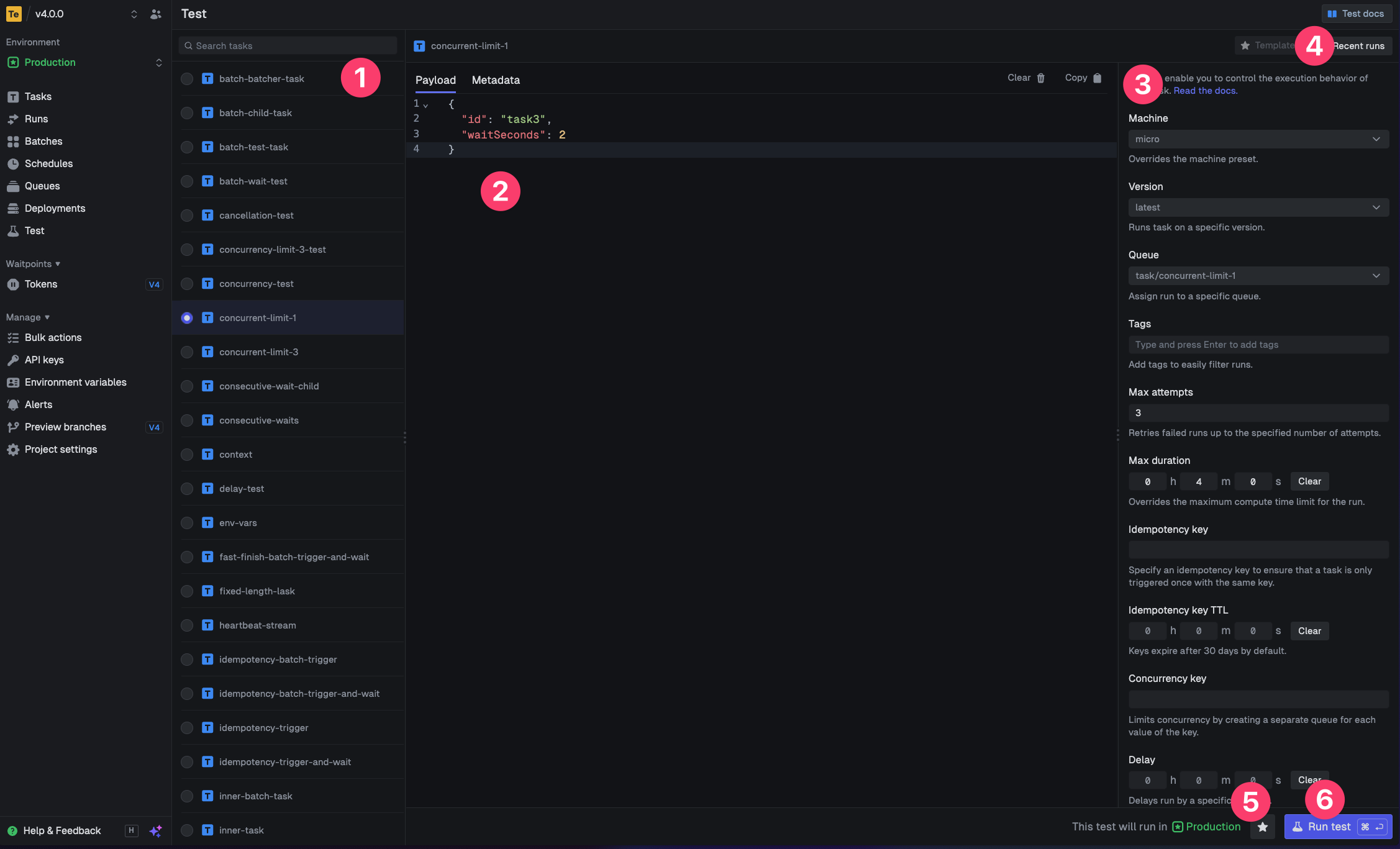
dev command spits out various useful URLs. Right now we want to visit the Test page.You should see our Example task in the list , select it. Most tasks have a “payload” which you enter in the JSON editor , but our example task doesn’t need any input.You can configure options on the run , view recent payloads , and create run templates .Press the “Run test” button .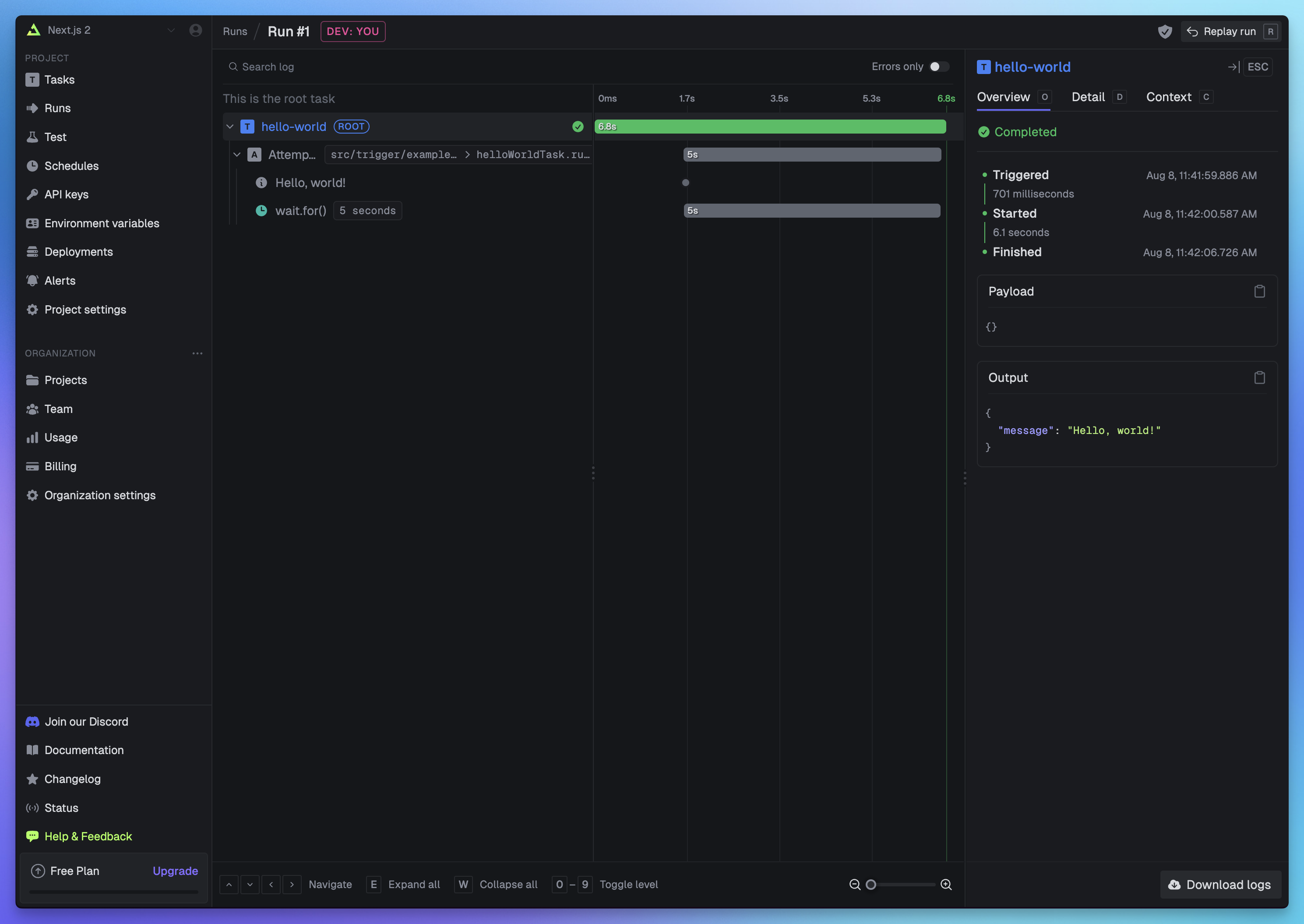
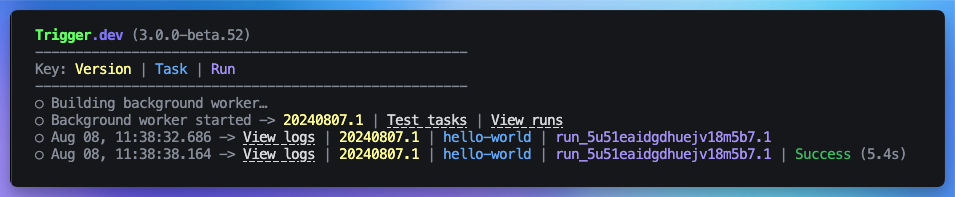
Creating a task using Prisma and deploying it to production
Writing the Prisma task
First, create a new task file in your
trigger folder.This is a simple task that will add a new user to the database.For this task to work correctly, you will need to have a
user model in your Prisma schema with
an id field, a name field, and an email field./trigger/prisma-add-new-user.ts
Configuring the build extension
Next, configure the Prisma build extension in the The
trigger.config.js file to include the Prisma client in the build.This will ensure that the Prisma client is available when the task runs./trigger.config.js
prismaExtension requires a mode parameter. For standard Prisma setups, use "legacy"
mode. See the Prisma extension documentation for other modes
and full configuration options.Build extensions allow you to hook into the build system and
customize the build process or the resulting bundle and container image (in the case of
deploying). You can use pre-built extensions or create your own.
Optional: adding Prisma instrumentation
We use OpenTelemetry to instrument our tasks and collect telemetry data.If you want to automatically log all Prisma queries and mutations, you can use the Prisma instrumentation extension.This provides much more detailed information about your tasks with minimal effort.
/trigger.config.js
Deploying your task
With the build extension and task configured, you can now deploy your task using the Trigger.dev CLI.
Adding your DATABASE_URL environment variable to Trigger.dev
In your Trigger.dev dashboard sidebar click “Environment Variables” , and then the “New environment variable” button .You can add values for your local dev environment, staging and prod. in this case we will add the 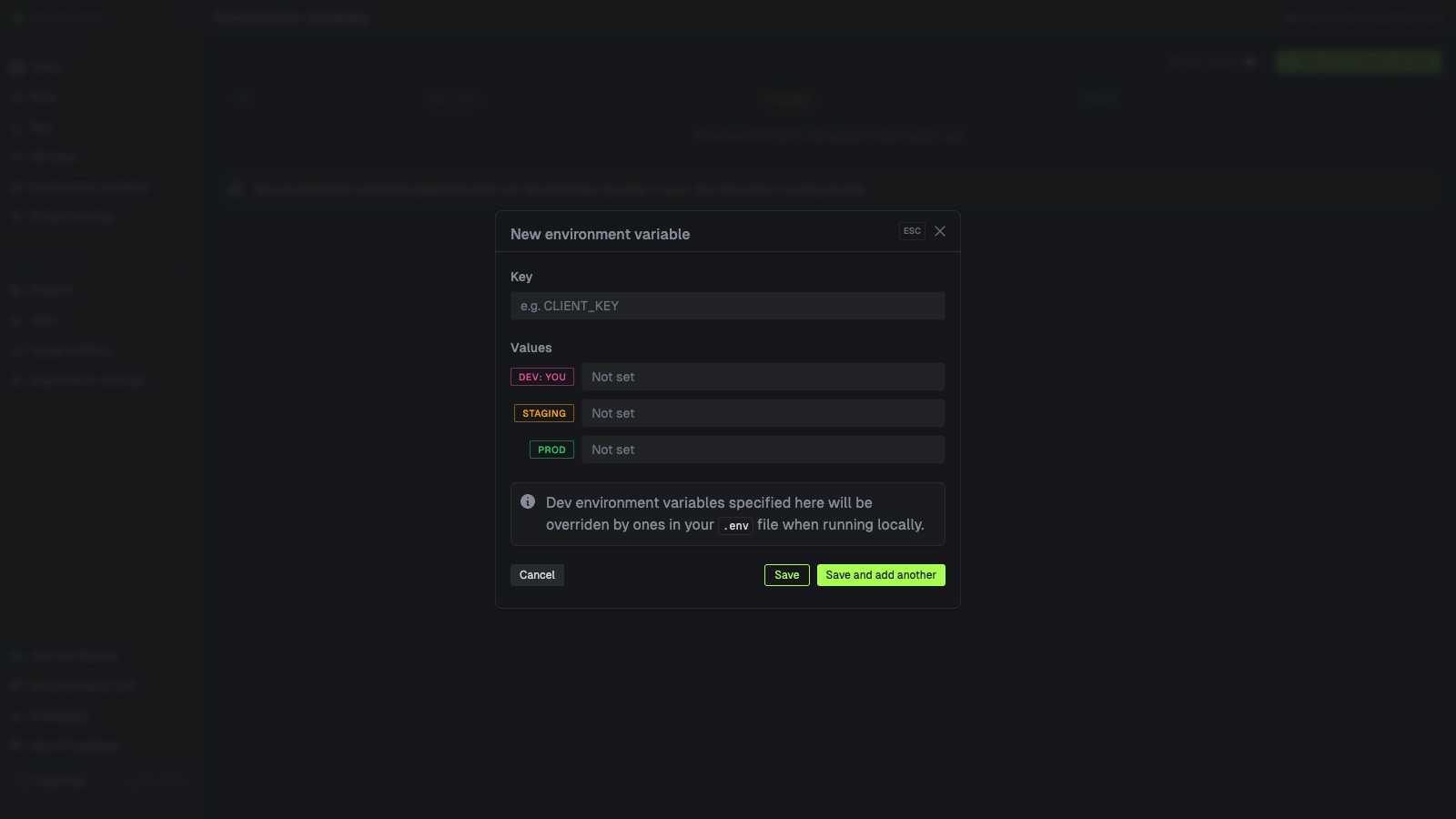
DATABASE_URL for the production environment.